
5Volt Output Samsung S20 Game Controller Android Phone Joystick 48g
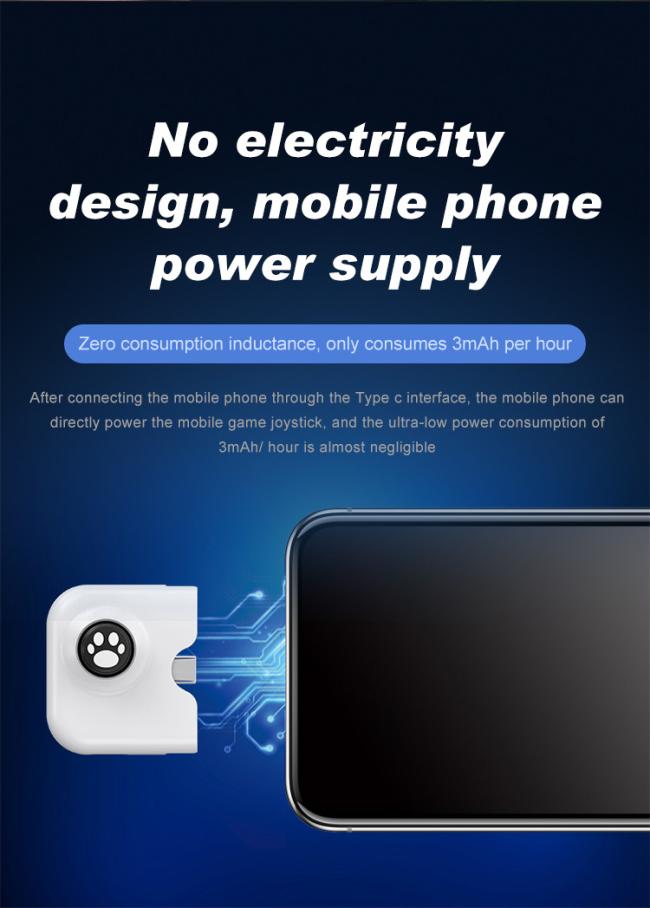
Type C port PD fast charging joystick for Samsung
Product Outline
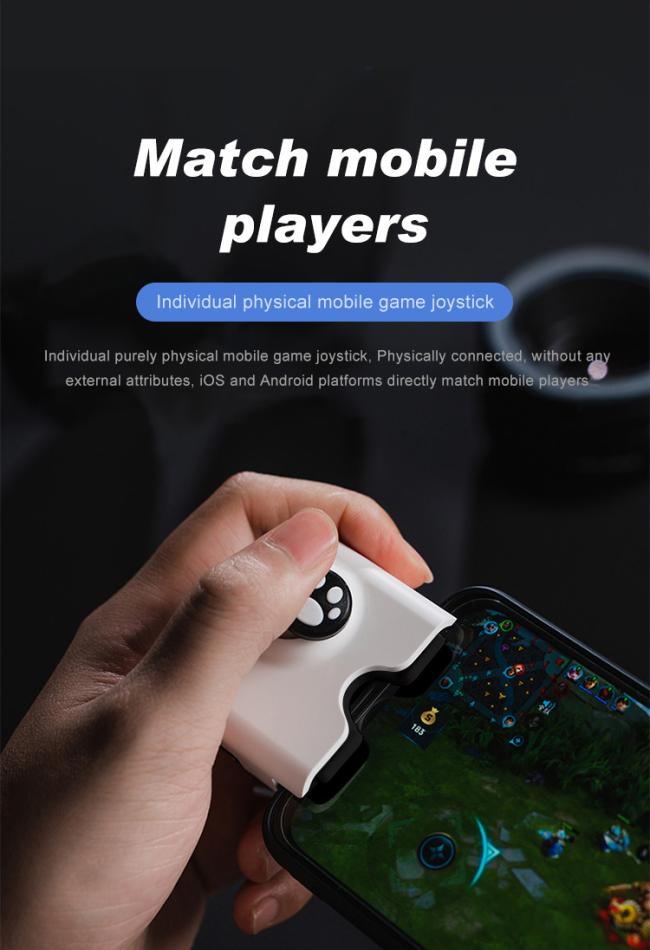
Individual mobile game joystick: Single hand operate design, play with the magical style;
Physical joystick, real game feeling: Half handle and half screen, farewell to the era of click screen.The physical joystick for mobile games can bring better power experience to the game. This kind of game experience is completely different from the screen scraping player;
Smoothly moving More precise angle and strength: 12-bit ADC module <0.1° steering operation. Freely offensive and defensive, flexible interleaving, continuous movement, reverse position.
***NOTE***
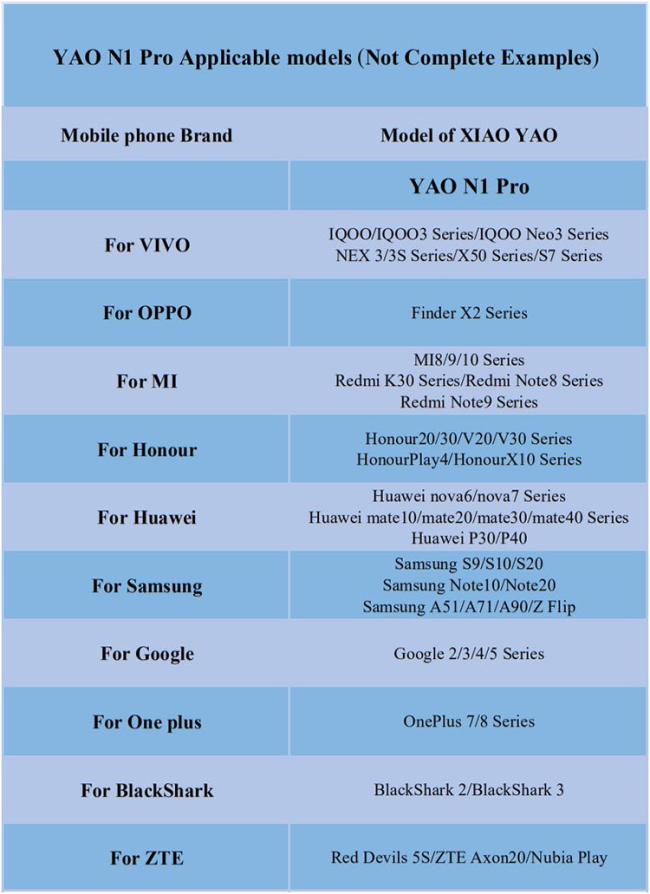
1. Android users please confirm whether the phone model matches our joystick before purchasing;
2. Please read the use steps at the bottom carefully;
3. If you have any questions, please contact us, do not buy the product by yourself!!!
Specifics
Model : Yao-N1 PRO
Rated power: 20mW
Charging power: 5W.MAX
Product Size :50*45.9*38mm
Product Net Weight : 34.5g
Product Gross Weight :48g
Product Description
| Model | N1 Pro |
| Function | Playing Mobile Phone Game |
| Compatible | IOS and Android Mobile Phone |
| Product Size | 48*48*20mm |
| Package | Color Box |
| Port | Type C / Lightning |
| Function | Charge While Playing Phone Game |
How To Use(For Android User)
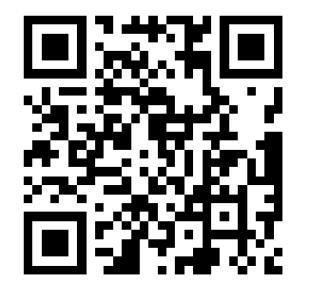
1. Please Scan QR code and download APP
2. Open the mobile phone Developer Option and turn on the USB Debug Switch (different models of mobile phones have different ways to open the Developer Option. Please follow the instructions on the top right of the APP for the specific operation mode;
3. Keep pressing the joystick down and insert type-C connector of mobile phone into the activation mode. At this time, the green LED flashes until the mobile phone interface pops up whether USB Debug is allowed. After debugging, release the joystick and click Allow. At the same time, the USB Configuration Option will pop up in mobile phone interface. In the USB Configuration Option, select Charging Only (some mobile phones may need to click the File Transfer option), and wait for 3 seconds to prompt up Activation Success;
4. If the firmware version is 2. X, it will pop up whether to allow the application of "mobile game assistant" to access the USB device when it prompts that the Activation Success, then click OK. If the firmware version is 1. X, it is necessary to plug the joystick again after activation to complete the connection operation;
5. After adding the game, click the game to enter game operation interface. In this interface, click the green floating window icon, drag the red ball to configure the operation area of the joystick controller. After dragging, click save the configuration. After the prompt configuration takes effect, close the dialog box to enjoy the game.
Get in Touch
Have questions about our products or want to discuss a custom order? Our team is ready to help you.