
10.1 Inch HDMI Display Screen 1280*800 Resolution With 6H Hardness Tempered Glass Cover
Price:
$52-58/pieces
MOQ:
100
Delivery Time:
30-45days
Brand:
YZY
Product Description
YQX28-101 10.1 Inch IPS HDMI LCD Display with 1280*800 Resolution and 6H Hardness Tempered Glass Cover
Product Description
YQX28-101 10.1 Inch IPS HDMI LCD Display with 1280*800 Resolution 5 Point Capacitive Touch Screen
Product Features
- 10.1 inch IPS high-definition display screen - Wide viewing angle | True color reproduction | Excellent picture quality
- 1280 *800 resolution - HD vision | Exceptionally detailed display
- New touch panel - Tempered glass cover | 6H hardness rating for durability and scratch resistance
- High sensitivity capacitive touch screen - Precise touch response | Supports up to 5 simultaneous touch points
- HDMI interface - HD input capability | Functions as HDMI display
- Multi-device compatibility - Works with Raspberry Pi, Banana Pi, and BeagleBone development boards | Compatible with PS4, XBOX360, Nintendo Switch and other game consoles | Connects to TV boxes and digital cameras (display only)
- Multi-system support - Raspbian, Kali Linux, Ubuntu, Kodi, Win10 IOT (touch driver-free) | Win-dows 7/8/10/11 (touch driver-free)
- CE and ROHS certified
Technical Specifications
| Size | 10.1 inch | Screen Type | IPS Screen |
| SKU | MPI1008 | Resolution | 1280*800 dots |
| Backlight Adjustment | Key Switch Adjustment | Touch | 5 point capacitive |
| Power | MicroUSB (5V) | Video Input | HDMI |
| Dimensions | 239.4*157.4*12.3mm | Packaging size | 295*195*70mm |
| Active display | 216.57*135.36mm | Weight | 892 g (including packaging) |
Product Dimension

Interface Diagram
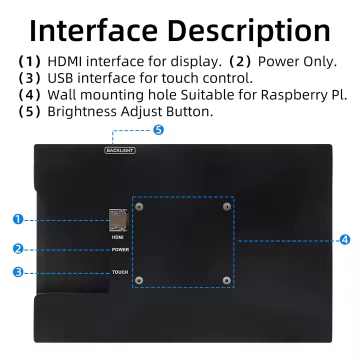
Working with Raspberry Pi
Step 1. Download the Official image
- Download Raspbian Official Image
Download URL: https://www.raspberrypi.org/downloads/raspbian/
Username: pi Password: raspberry - Download Ubuntu Mate Official Image
Download URL: https://ubuntu-mate.org/download/
The user name and password can be set by yourself after startup - Download Kail Official Image
Download URL: https://www.offensive-security.com/kali-linux-arm-images/
Username: kali (The old version is root) Password: kali(The old version is toor) - Download Retropie Official Image
Download URL: https://retropie.org.uk/download/
Username: pi Password: raspberry
Step 2. Burn Official Image
- Download and install tool software (If they are already installed, this step can be ignored)
SD card format software SDCard Formatter download URL:
https://www.sdcard.org/downloads/formatter_4/
Image burning software win32diskimager download URL:
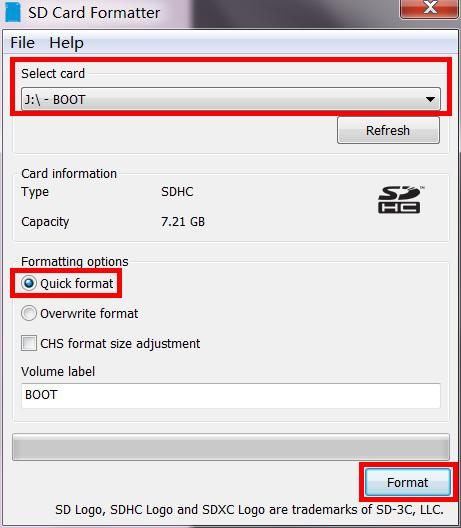
https://sourceforge.net/projects/win32diskimager/ - Format SD card
Insert the SD card into the card reader → Insert the card reader into the computer → Open the SDFormatter software → Select SD card → Select quick format (generally select quick format, other options can be selected according to your own needs) → Click the Format button → Select "Yes" → Click OK after formatting.![SD card formatting process]()
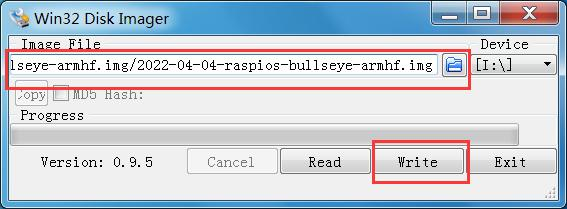
- Burn Image
Open the win32diskimager software → Select the image file to be burned (xxx.img) → Select SD card → Click the "write" button → Select "Yes" → Wait for the burning to complete (the whole process lasts about 10 minutes)![Image burning process]()
Step 4. Insert SD card
After the above steps are completed, pop up the SD card on the computer and insert it into the SD card slot on the back of the raspberry pie.
Step 5. Running system
Connect the HDMI interface and touch interface of the display screen to raspberry pie, connect the power supply of raspberry pie, and start the machine to display and touch normally.
Similar Products
Get in Touch
Have questions about our products or want to discuss a custom order? Our team is ready to help you.
Company
Shenzhen YZY Technology Co., Ltd
Location
Room 514, 5th Floor, Block B, Baogang Center, Baoyuan Road, Xixiang Sub-district, Bao 'an District, Shenzhen City
Contact Person
Jared